





WhatsApp is a household name for mobile messaging. The platform's move to the desktop brought that same convenience to your computer. This guide shows you how to make the most of it.
A New Way to Connect
This introduction explores the journey of WhatsApp to the desktop. We will cover why the desktop version is so useful. You will also learn what this guide covers.
The Evolution of WhatsApp from Mobile to Desktop
WhatsApp started as a simple mobile app. It quickly became the most popular messaging app for billions of people. Users loved its simplicity and reliability, making it perfect for keeping in touch with friends and family. Soon, demand for a desktop version grew. People wanted a similarly good experience on their computers. This need for convenience led WhatsApp to create a desktop version.
Why Use Web WhatsApp Desktop?
Web WhatsApp Desktop has many benefits over the mobile app. You can type better with a full-sized keyboard. The larger screen makes managing chats much easier. It helps you do many tasks at once. You can switch between work and chats without picking up your phone. This helps you focus on your work. You can see all messages without checking your phone. This saves time and keeps you from getting distracted.
What This Guide Will Cover
This guide gives you a full roadmap. You will learn how to set up Web WhatsApp Desktop. We will look at its main features. We will also show you how to use them well. We will give you tips for fixing common problems. This guide has everything you need. You can master WhatsApp on your computer.
Getting Started: Setting Up Web WhatsApp Desktop
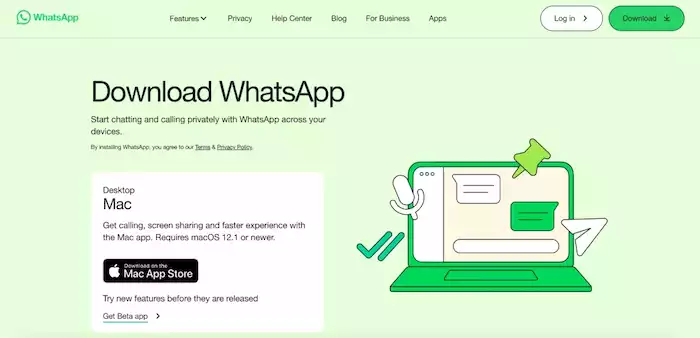
This section shows you how to set up everything. The process is simple. It only takes a few minutes.
Prerequisites
Before you begin, you need a few things. First, you must have an active WhatsApp account on your phone. Second, you need a stable internet connection. This is for both your phone and desktop. A good connection makes sure messages sync well. The desktop app will not work without these things.
Step-by-Step Installation and Access
It is easy to get WhatsApp on your desktop. You have two main options. Go to web.whatsapp.com in your browser. This gives you instant access without any installation. Or you can download the desktop app. It works on Windows and Mac computers. The app is often more stable. It also has better notifications.
Both methods require you to link your account using a QR code. Open WhatsApp on your phone. Go to Settings, select "Linked Devices," and tap "Link a Device." Your phone's camera will turn on. Simply scan the QR code on your desktop screen. Your account will link in seconds.
Initial Setup and Interface Overview
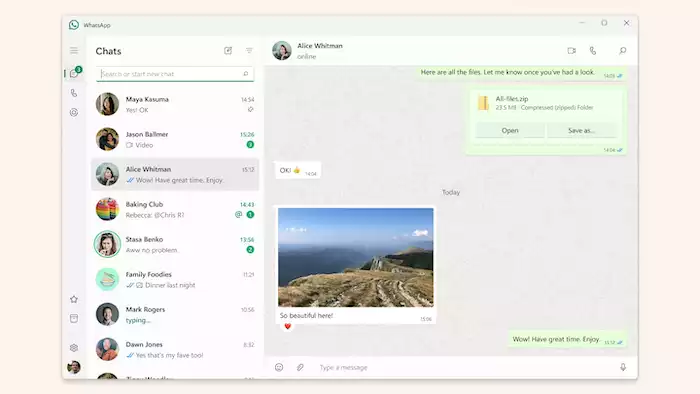
After you link your account, you see the main screen. The layout is clean and easy to use. On the left, you have your chat list. You can see all your chats here. Click a chat to open it in the main window. At the top, you find menu options. These are for settings, your profile, and new chats. Your messages will start syncing from your phone. This might take a moment. It depends on your chat history and internet speed.
Core Features and Functionality
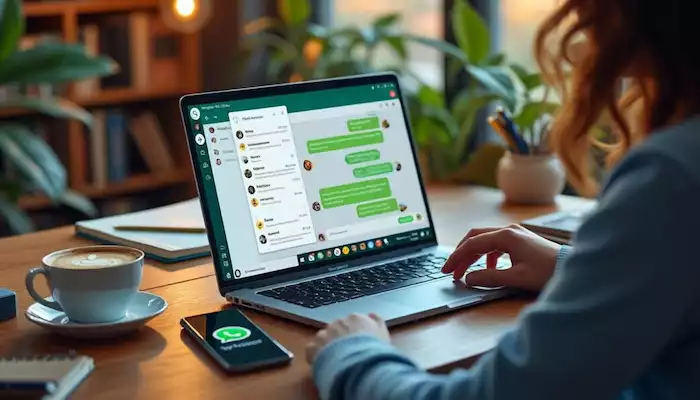
Web WhatsApp Desktop has the same core features as the app. This section shows how to use these key features.
Messaging and Communication
The main feature is messaging. Businesses can send and receive texts just like on a phone, but working on a computer is often faster because you have a full keyboard. They can also share photos, videos, documents, and other files directly from the desktop, which is convenient for customer support and sales teams.
Many companies use third-party platforms like Pancake to sync all WhatsApp messages into one interface. This makes it easier to manage multiple conversations, assign tasks to staff, and reply on different devices, especially computers.
A real example is Modanisa. They use this setup to handle a large number of customer chats, send product photos, answer questions faster, and support clients across different time zones, all in one dashboard.
The desktop version also supports voice messages and calls. With everything in one place, teams can communicate quickly and serve customers more professionally.
Managing Chats
Organizing your chats is simple. You can archive chats to keep your main list clean. You can mute very active conversations to stop constant notifications. Important chats can be pinned so they always stay at the top of your list.
Starring messages is also helpful. You can mark important details and find them later in the “Starred Messages” section. The search bar makes it easy to look for old messages, files, or keywords, perfect when you need information fast.
Modern platforms now also integrate chatbots and AI-Agents to increase efficiency. They can answer common questions automatically, route messages to the right department, and speed up response time. When there are special requests or difficult cases, the system can hand the conversation over to a human support agent instantly. This keeps service smooth, fast, and professional.
Customization and Settings
You can change how WhatsApp looks on your desktop. You can control notifications in the settings. You can turn them on or off. You can also change the sound. You can change your chat wallpaper. Use a color or image you like. The desktop app also supports dark mode for a different look.
Managing your contacts is also possible. You can view contacts and manage your blocked list from the desktop. Your changes will sync to your mobile device.
Advanced Tips and Tricks for Power Users
After you learn the basics, you can try advanced features. These tips will help you work faster.
Keyboard Shortcuts for Efficiency
Keyboard shortcuts can make you work much faster. WhatsApp Desktop has several built-in shortcuts. For example, use Ctrl + N to start a new chat. Use Ctrl + Shift + ] to move to the next chat. Learn these shortcuts to work without your mouse. This saves time and makes your work smoother.
Multi-Device Usage and Syncing
You can link up to four devices to your account. Your phone does not need to be online. This is true after the first setup. Messages sync smoothly across all your devices. A message on one device updates on all others. You can manage your linked devices in your phone's settings. This shows you where your account is active.
Troubleshooting Common Issues
Sometimes you may run into problems. Connection issues are the most common. If WhatsApp is not connecting, check your internet. Make sure your phone also has a good connection. Sometimes, you can refresh the page. You can also restart the app to fix it.
Syncing delays can also occur. This happens with many messages. It also happens with a slow internet connection. Be patient and give it time to catch up. If notifications are not working, check your browser or system settings. You might need to allow WhatsApp to show notifications.
Privacy and Security Considerations
Security is very important. Always use WhatsApp on a computer you trust. Always log out of a public or shared computer. You can do this from the desktop app's menu. For more security, log out of your phone. You can log out of other devices remotely. Go to "Linked Devices" and select the device to log out. This protects your privacy. It stops others from seeing your account.
Web WhatsApp Desktop for Productivity

WhatsApp on your desktop is very useful. It is a great tool for personal and professional use.
Enhancing Workflow for Individuals
WhatsApp Desktop helps you stay connected and focused. You can reply to messages while you work. You do not have to switch between devices constantly. Sharing files from your desktop is a big plus. You can drag and drop documents, images, and videos. This is much faster than sending them from your phone.
Simple Business Use Cases
Web WhatsApp Desktop is a great tool for small businesses. You can handle customer questions more easily. One person can manage chats from a computer. This leads to faster response times and better customer service. You can send quick updates and order confirmations.
You can also send appointment reminders. This simple process improves communication. It also builds stronger customer bonds. Many companies like Kingsport use it. They use it to improve their customer service.
When to Consider the WhatsApp Business API
The normal WhatsApp Business app is good for small businesses. However, large businesses need more power. You may need the WhatsApp Business API. This is for when message volume gets too high. The API is made for large businesses. It allows for automation and chatbots. It can also connect with other business systems. It is the next step for growing businesses. They can improve customer communication with it.
Conclusion
Web WhatsApp Desktop changes how you communicate from your computer. It connects your mobile and desktop worlds, giving you a full keyboard and a larger screen. This makes messaging faster and more convenient for both personal and work use. The future of desktop messaging will bring even smoother and smarter features across all devices.
For businesses, one simple way to level up is to sync WhatsApp chats with a platform like Pancake, then integrate Botcake’s automation tools. This helps manage conversations in one dashboard, assign messages to team members, and automate replies. It improves workflow and increases conversion rates, whether your team is using WhatsApp on mobile or desktop.