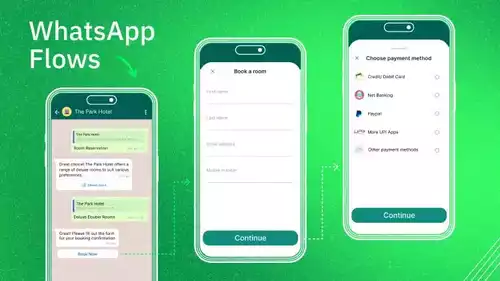







WhatsApp Webchat transforms your messaging experience. It brings your mobile conversations to your computer screen. This guide will walk you through everything you need to know.
The Rise of Web-Based Messaging
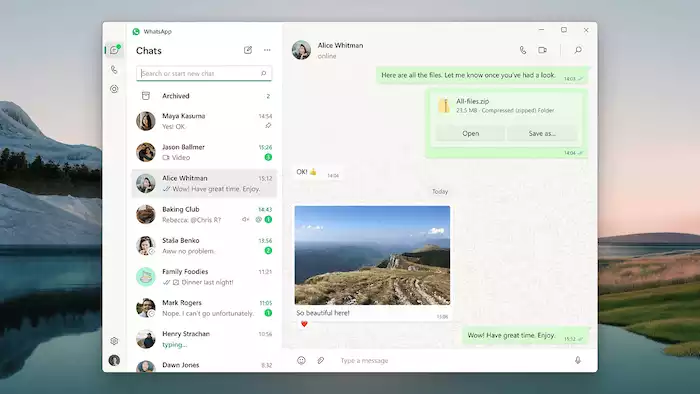
Communication has changed a lot over the years. We moved from desktop apps to browser-based platforms. This change is very convenient. You can access messages from any computer with a web browser. It removes the need for extra software installations.
What is WhatsApp Webchat?
WhatsApp Webchat is a browser version of your mobile WhatsApp account. It mirrors all the conversations and messages from your phone. You can read, send, and receive messages right on your desktop. It works by syncing your mobile app with your computer’s browser.
This offers several key benefits. You can type much faster on a physical keyboard. Multitasking is easier when you can switch between browser tabs. You do not have to pick up your phone. A larger screen also makes it more comfortable to view media and read long chats.
Why This Guide Matters
This guide is your roadmap to WhatsApp Webchat. We will cover everything from the initial setup to advanced tricks. You will learn how to use its features well. You will also learn how to fix common problems. This guide has useful info for both new and experienced users.
Getting Started with WhatsApp Webchat
Setting up WhatsApp Webchat is a simple process. It only takes a few moments to link your devices. Once connected, you can enjoy smooth messaging on your desktop. This section will guide you through the needed steps.
Requirements and Compatibility
Before you start, make sure you have what you need. WhatsApp Webchat works with the most popular browsers. This includes Google Chrome, Mozilla Firefox, and Microsoft Edge. It also works with Safari and Opera. Your browser should be the latest version for the best performance.
Your mobile device has a few needs too. It must have an active internet connection through Wi-Fi or mobile data. Your phone’s battery should have enough charge. The web version needs your phone to sync messages. A dead phone means your webchat will disconnect.
Step-by-Step Setup Guide
Follow these simple steps to connect your devices. First, open your favorite web browser on your computer. Go to web.whatsapp.com. You will see a QR code shown on the screen. This code is unique and disappears after a short time.
Next, open WhatsApp on your mobile phone. On an Android phone, tap the three-dot menu on the top right. Choose "Linked Devices" and then tap "Link a Device." On an iPhone, go to "Settings" and choose "Linked Devices."
Your phone’s camera will open. Point it at the QR code on your computer screen. The camera will scan the code automatically. After a good scan, your account will link to your computer. Your chats will show up in the browser, ready for you to use.
Troubleshooting Common Setup Issues
Sometimes you might have issues during setup. If the QR code does not scan, refresh the webpage. This will create a new code. Also, make sure your phone's camera lens is clean. There should be enough light.
Connection problems are also common. Your phone needs an internet connection for WhatsApp Webchat to work. If you see an error, check your phone’s Wi-Fi or data connection. A poor network on your phone or computer can cause syncing issues.
Finally, browser problems can happen. If you have issues, try clearing your browser’s cache and cookies. You can also try a different browser. This might fix the problem.
Mastering WhatsApp Webchat Features
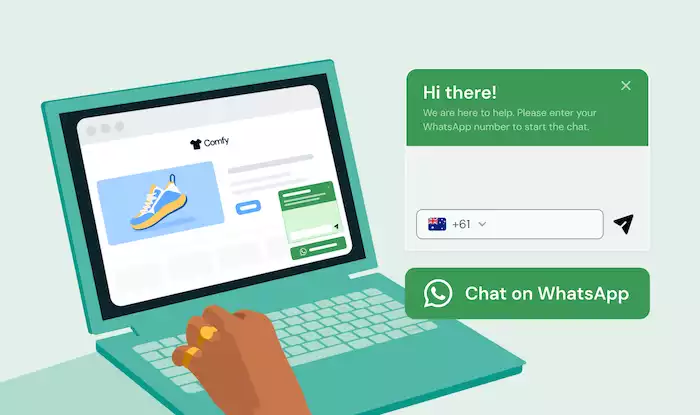
WhatsApp Webchat offers a rich set of features. These tools make desktop messaging powerful and easy. You can do almost everything that you do on the mobile app. Let’s explore the main functions and settings.
Core Messaging Functions
The main job of WhatsApp Webchat is sending and receiving messages. You can type text messages quickly on your computer keyboard, and the platform also lets you share media easily,including photos, videos, and audio files. You can do this right from your desktop by dragging a file into the chat or using the attachment icon.
You can also use emojis, GIFs, and stickers, all easily accessible from the chat window.
As of 2024–2025, the WhatsApp Desktop app (Windows and Mac) supports voice and video calls, allowing users to connect directly from their computers. However, the browser-based WhatsApp Web version still has limited call functionality; you can see incoming call alerts but cannot start or receive calls directly in the browser.
Managing Chats and Contacts
Organizing your talks is simple. You can archive chats to hide them from your main list. Muting a chat will stop notifications for that talk. You can also delete chats forever if you do not need them. Starring messages helps you save important information for later.
Creating new chats and groups is easy. You can search your contacts to start a new talk. You can also create new groups and manage members from the web version. The search bar helps you find messages, contacts, or files in all your chats.
Customization and Settings
WhatsApp Webchat lets you make some personal changes. You can manage your notification settings to control alerts. You can choose to get desktop alerts and sounds for new messages. You can also change your chat wallpaper. This will change the look of your conversations.
Privacy and security settings are also available. You can manage your blocked contacts. You can also review your privacy settings. To be faster, you can learn keyboard shortcuts. These help you move around more quickly. Shortcuts help you switch chats, archive talks, and mute alerts easily.
Advanced Tips and Tricks for WhatsApp Webchat
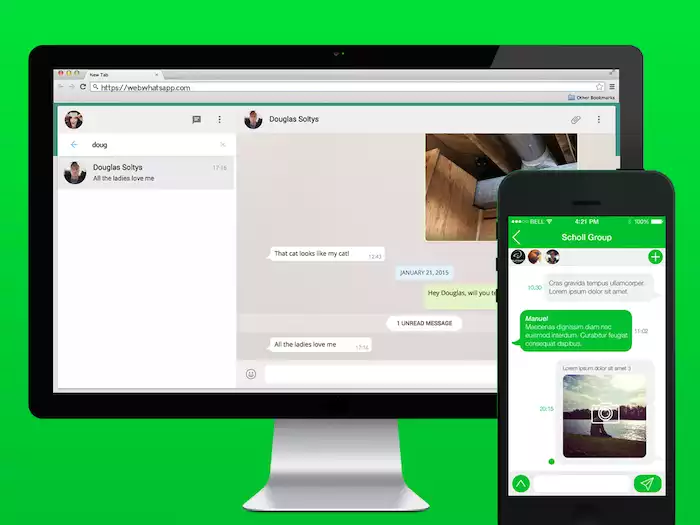
After you learn the basics, you can try advanced features. These tips can help you be faster and safer. For businesses, adding WhatsApp to your work can change how you talk to customers. Platforms like Botcake can help even more. They automate and organize conversations.
Enhancing Productivity
Keyboard shortcuts are a great way to speed up your work. You can use them to mark messages as unread or delete chats. You can also open a new chat. Pinning chats is another great tool. You can pin three important talks to the top of your list. This gives you quick access. It is perfect for current projects or important contacts. Some tools for your browser let you open many WhatsApp windows. This can be useful for managing different talks.
Many businesses use tools to improve their WhatsApp communication. For example, the sports seller Kingsport used a platform for customer questions. This helped them handle thousands of talks well. It improved their customer service and sales. Also, Little Garden, a plant shop, made its order process easier through chat. This made customers happier.
Privacy and Security Best Practices
Security is very important on a shared computer. Always remember to log out when you are done. You can log out from the menu in WhatsApp Webchat. You can also log out from your phone. This stops others from seeing your messages.
Keeping your phone safe is also important. WhatsApp Webchat is linked to your phone. Anyone with your phone could access your web chats. Use a strong passcode or fingerprint lock on your phone. Be careful with fake messages. Never click on links that look strange. Do not give personal info to unknown contacts.
Integrating with Your Workflow
WhatsApp Webchat is a great tool for business. You can use it to answer customer questions quickly. Easily sharing files from your desktop is a big benefit. You can share product lists or bills. This direct way of talking helps build stronger customer bonds.
Common Issues and Solutions for WhatsApp Webchat
Even with a good platform, you might have some problems. Most issues are easy to fix with a little problem-solving. This section covers common problems and how to solve them. You can get back to your talks quickly.
"Phone Not Connected" Error
The "Phone Not Connected" error is a common problem. It appears when the webchat cannot connect to your phone. First, check your phone’s internet connection. Make sure it has a stable Wi-Fi or a strong data signal.
Your phone’s battery level is also important. If your battery is very low, your phone may turn off background data. This can disconnect your webchat. Make sure your phone is charged. If the problem continues, try restarting WhatsApp on your phone. You can also restart your phone.
Syncing Delays and Message Lag
Sometimes your messages might be delayed. This lag can be annoying. Clearing your browser's cache and cookies is often a good fix. This removes old data that may slow the connection.
A slow network on your computer or phone can also cause delays. Run a speed test to check your internet speed. If your connection is slow, move closer to your router. You can also switch to a different network. If nothing else works, disconnect and re-link your device. This creates a fresh connection and often fixes syncing problems.
Notifications Not Working
If you are not getting alerts for new messages, check your browser settings. You may have blocked notifications from web.whatsapp.com by mistake. Go to your browser’s notification settings. Make sure they are on for WhatsApp.
Also, check your main computer notification settings. Your computer might be blocking alerts. Make sure WhatsApp Webchat is not muted in the web version. You can see a mute icon next to a chat if it is muted.
The Future of WhatsApp Webchat
Web-based messaging is always changing. WhatsApp is always working on new features. They want to improve how people use it. The future of WhatsApp Webchat looks good with new updates. It will become more powerful and work on its own.
Upcoming Features and Developments
One exciting new feature is making calls from the web. You could make voice and video calls directly. This would make WhatsApp Webchat a full communication tool. Better support for many devices is also coming soon. You could use WhatsApp on many devices without your phone. This standalone mode would offer more freedom.
The Role of Web-Based Messaging
Web-based messaging is a big part of how we talk today. It offers an easy way to connect. It works well with mobile messaging. For many people, a desktop is their main place of work. Access to messages on a big screen helps you work faster. It also makes doing many tasks easier. These platforms will continue to be a key part of our digital lives.
Conclusion
WhatsApp Webchat is a very useful tool for people who message a lot. It brings the ease of mobile messaging to your desktop. You get a larger screen and a full keyboard. You now know how to set it up and use its best features. We also looked at how to fix common problems and what is coming next.
By adding it to your daily work, you can work faster. It can also make talking to people easier. Businesses can improve how they talk to customers. Tools like Botcake offer great ways to manage and automate talks. Find what works best for you. Enjoy a smooth messaging experience.